


Managing Multiple YouTube Channels with Isolated Browser Profiles
Running one YouTube channel is already a small media operation.
You have videos to publish, thumbnails to prepare, comments to monitor, analytics to review, descriptions to update, playlists to organize, and an endless stream of ideas competing for attention.
Now multiply that by 5, 10, 20, or more channels.
Suddenly, the problem isn't just content.
It's account management.
Which Google account is connected to which channel? Which browser session is logged into which account? Which channel are you currently editing? Did you just upload the video to the wrong channel? Who has access? And why does your browser have 47 tabs open?
YouTube itself provides tools for managing multiple channels and delegating access. A single Google Account can manage multiple YouTube channels, and YouTube says one Google Account can manage up to 100 channels. Brand Accounts and YouTube channel permissions can also allow multiple people to manage a channel without sharing the owner's password.
But once YouTube becomes part of a larger operation, browser organization becomes an important part of the workflow.
That's where an isolated browser environment such as MarketerBrowser can become useful.
YouTube Is No Longer Just One Channel
The traditional YouTube workflow looks simple:
Google Account → YouTube Channel → Videos
But businesses, agencies, creators, and media operators often have a more complicated structure.
For example:
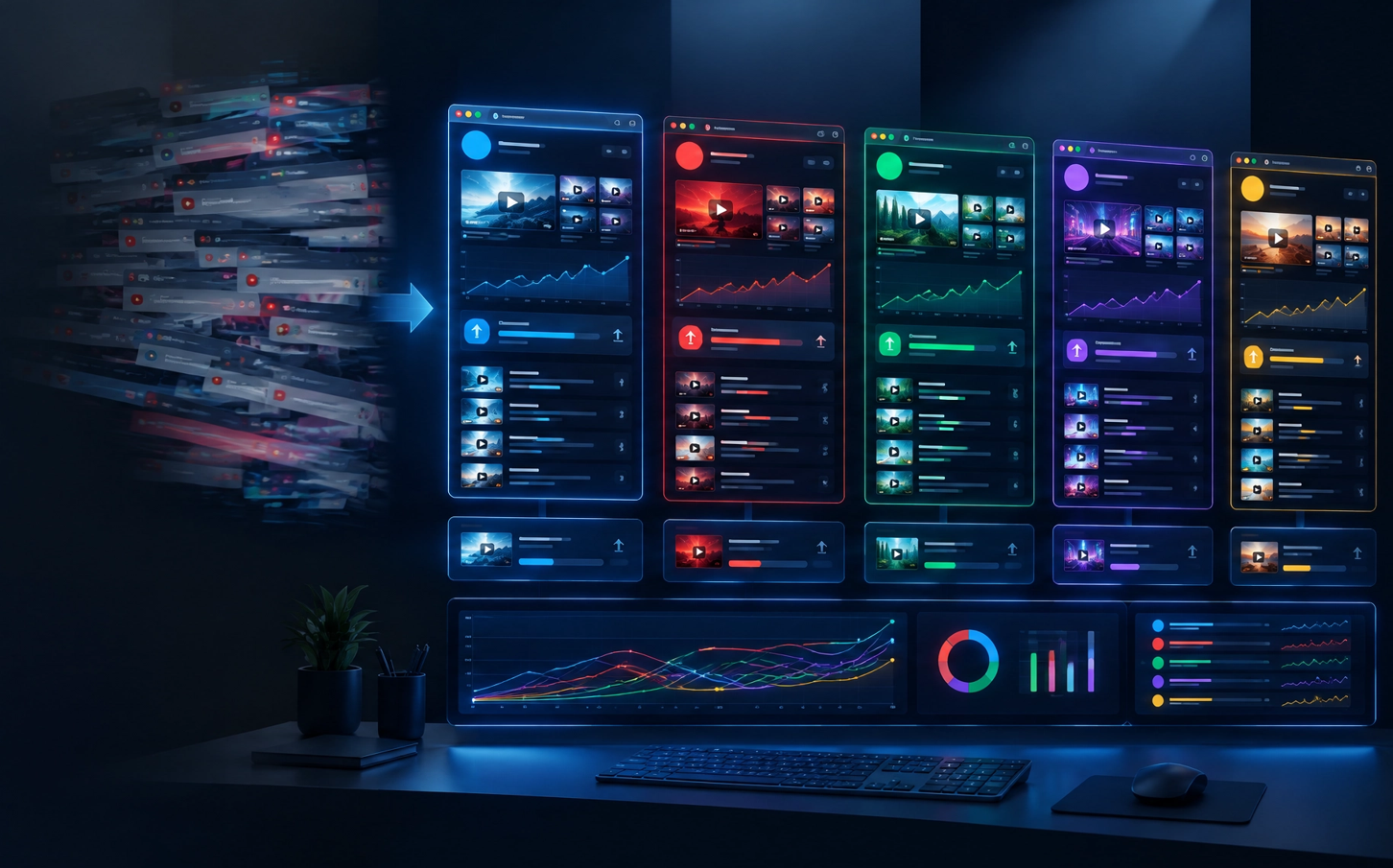
- Brand channel
- Client channel
- Educational channel
- Product channel
- Regional channel
- Niche channel
- Testing channel
- Multiple channels managed for different businesses
YouTube officially supports multiple channels and Brand Accounts. A Brand Account can allow multiple Google Accounts to manage a YouTube channel, while YouTube's channel permissions provide role-based access for people helping manage the channel.
The challenge becomes keeping those environments separated and easy to understand.
Because accidentally uploading a video to the wrong channel is a remarkably unglamorous way to ruin a Tuesday.
Why Browser Separation Matters
When several accounts are managed from the same browser environment, it can become difficult to maintain a clean mental and operational separation between them.
You may find yourself switching between:
- Google accounts
- YouTube channels
- YouTube Studio
- Gmail
- Analytics
- Google Drive
- Content calendars
- Client accounts
YouTube does allow users to switch between channels connected to the same Google Account.
But switching accounts and isolating account environments are two different things.
For a small number of channels, ordinary browser profiles may be enough.
For larger operations, dedicated browser environments can make the workflow easier to organize.
Think in Terms of "One Workspace, One Channel"
A useful operational model is:
One browser profile → One primary account environment
Instead of keeping every Google identity inside one giant browser session, you can create separate MarketerBrowser profiles for different YouTube operations.
For example:
MarketerBrowser│ ├── YouTube - Brand A ├── YouTube - Brand B ├── YouTube - Client A ├── YouTube - Client B ├── YouTube - Education └── YouTube - Regional
Each profile can maintain its own browser environment, cookies, sessions, bookmarks, and configuration.
The result is simple:
Open the profile → enter the correct YouTube environment → work.
Less account switching. Less confusion. Less "wait, which Gmail is this?"
YouTube Channel Management Is Also a Team Problem
Multiple-channel operations often involve multiple people.
A video editor might upload content.
A marketing manager might review analytics.
A client might own the channel.
An agency might manage the entire publishing workflow.
YouTube's channel permissions are designed for exactly this type of delegation. YouTube provides different permission levels, allowing channel owners to control what other users can access without giving them the owner's Google Account password.
That distinction is important.
Account sharing and channel delegation are not the same thing.
Where YouTube's built-in permissions solve the question of who can access a channel, a browser management system can solve a different problem:
How do you keep the working environments organized?
Those two systems can complement each other.
A Practical Multi-Channel Workflow
Imagine an agency managing eight YouTube channels.
Instead of keeping everything inside one browser session, the agency creates a dedicated browser profile for each operational environment.
Step 1: Create the channel structure
Organize the YouTube channels according to brands, clients, regions, or content categories.
Step 2: Use YouTube's native permissions
Give team members the appropriate YouTube role rather than sharing the primary Google Account password. YouTube specifically recommends using channel permissions to reduce security and privacy risks associated with password sharing.
Step 3: Create dedicated MarketerBrowser profiles
Create a browser profile for each operational environment.
For example:
Client-A-Youtube Client-B-Youtube Brand-A-Youtube Brand-B-Youtube Media-Channel-01 Media-Channel-02Step 4: Keep each environment clearly labeled
A good naming convention sounds boring.
That's exactly why it works.
Instead of:
Profile 1 Profile 2 Profile 3use:
US-Tech-Client UK-Education-Client Brand-A-Main Brand-A-Shorts Brand-B-MediaSix months later, you'll thank yourself.
Step 5: Keep the publishing workflow separate
Each profile can contain the bookmarks, sessions, and working resources relevant to that channel.
The goal isn't complexity.
The goal is repeatability.
What MarketerBrowser Adds to the Workflow
MarketerBrowser is an anti-detect browser designed around isolated browser profiles and account environments.
For YouTube operators, the practical value is not simply "another browser."
It's having a structured environment for managing different account sessions.
Instead of thinking:
"I have 20 YouTube accounts."
Think:
"I have 20 clearly organized YouTube workspaces."
That mental shift sounds small.
Operationally, it isn't.
When every environment has a defined purpose, it becomes easier to know where you are, what you're managing, and which account you're supposed to be using.
Don't Confuse Isolation With Permission Management
This distinction is worth emphasizing.
MarketerBrowser does not replace YouTube's own channel permission system.
If a client needs an employee or agency to manage their YouTube channel, YouTube provides channel permissions for granting appropriate access.
MarketerBrowser addresses the browser-side environment.
YouTube addresses the platform-side permissions.
Think of them as two layers:
YouTube └── Who is allowed to manage the channel?
MarketerBrowser └── Which browser environment are you using to manage it?
That separation makes the workflow easier to understand.
Multiple Channels Don't Have to Mean Multiple Headaches
The biggest mistake in multi-channel YouTube management is often not technical.
It's organizational.
As the number of channels increases, small mistakes become expensive in time:
- Wrong account
- Wrong channel
- Wrong upload destination
- Wrong browser session
- Wrong client
- Wrong permissions
- Wrong workspace
A structured browser environment won't create a successful YouTube channel for you.
It does something more practical:
It gives the people running multiple channels a cleaner place to work.
And when YouTube becomes a serious publishing operation rather than a single creator account, that kind of organization starts to matter.
The Bigger Picture
YouTube is evolving from a platform where one person uploads videos into an ecosystem where brands, agencies, creators, publishers, and teams can operate multiple channels simultaneously.
The platform already provides the account and permission infrastructure to support collaborative channel management.
The next challenge is operational.
How do you manage all those environments without losing track of them?
That's where browser isolation becomes interesting.
Not because having 20 browser windows is impressive.
It isn't.
It's because 20 organized workspaces are much easier to manage than one giant digital junk drawer.
Conclusion
If you manage only one YouTube channel, a normal browser may be all you need.
If you're managing multiple brands, clients, or channel environments, a more structured approach can make the day-to-day workflow considerably easier.
Use YouTube's native permissions to control who can manage each channel.
Use dedicated browser profiles to keep different account environments organized.
And use a tool such as MarketerBrowser(free version available) when you need a more structured way to manage multiple isolated browser environments from one computer.
The goal isn't to make YouTube management more complicated.
It's the opposite:
More channels. Less confusion.